I have one new trick to tell you today...
Imagine you have a Sharepoint list with a Date field that is only showing a date value and not the Time. If you create a Custom Display Form in Sharepoint Designer, you will see something incredible.
- Date field shows Time value
- Date field shows less 1 hour, which might lead to show one less day in date value
Just like this:
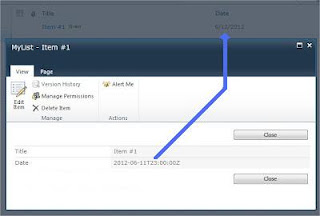 Check how I got the Date format...
1. Open your custom form in Sharepoint Designer and select the date value.
 2. Click the Formule button and write the following Formule:
ddwrt:FormatDate(string(@Date), 1033, 1)
Don't forget to use the string function!! Otherwise it will give you an error in XPath
1033 is the locale code, check other locale codes here List of Locale Codes
1 is the date format, the possible values are 1, 4, 5, 7,12, 13 or 15, each represent a different date format, pick the one that suites you better.
At least save your form and you will see a splendid result.
Enjoy my little trick...
Posts tonen met het label Display Page. Alle posts tonen
Posts tonen met het label Display Page. Alle posts tonen
dinsdag 27 november 2012
How to give a Date field the correct format in a custom DispForm


maandag 2 april 2012
View SharePoint Attachments in Display Pages
When creating a Custom Page of the Type Display, Sharepoint does not include
the attachments in your page.

To display attachments that dissapear in a custom display form,
simply add a new row in the custom display form
and add the following line within that row in the code view.
<SharePoint:AttachmentsField ControlMode="Display" FieldName="Attachments" runat="server" Visible="true"/>
Enyoi your attachments in your Display ASPX pages ;-)
Abonneren op:
Posts (Atom)