Posts tonen met het label ASPX. Alle posts tonen

zondag 7 september 2014

Trigger click event in your aspx page


How to trigger easely an event on your Sharepoint ASPX page by using JQuery. 
Well, it doesn't need very mutch to trigger automatically by example the save event
by using your scripting language.For example if somebody fills all required fields in 
and you detected that is was filled in correctly... you can trigger the save event without asking
the user to click on the save button. And this saves time for your customer. 

A simple line of code that you can put in your javascript 
Don't forget that you have to import your JQuery library ! 
  

      $("input[value='Save']").trigger("click");
 

dinsdag 27 november 2012

How to give a Date field the correct format in a custom DispForm


I have one new trick to tell you today...

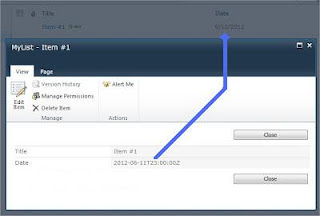
Imagine you have a Sharepoint list with a Date field that is only showing a date value and not the Time. If you create a Custom Display Form in Sharepoint Designer, you will see something incredible.

    - Date field shows Time value
    - Date field shows less 1 hour, which might lead to show one less day in date value

Just like this:

Check how I got the Date format...


1. Open your custom form in Sharepoint Designer and select the date value.


2. Click the Formule button and write the following Formule:

ddwrt:FormatDate(string(@Date), 1033, 1)

    Don't forget to use the string function!! Otherwise it will give you an error in XPath
    1033 is the locale code, check other locale codes here List of Locale Codes
    1 is the date format, the possible values are 1, 4, 5, 7,12, 13 or 15, each represent a different date format, pick the one that suites you better.

At least save your form and you will see a splendid result.

Enjoy my little trick... 

donderdag 2 augustus 2012

Custom Webpart Page with Attachments


What a day, searching for several hours to found out how it come's 
that the attachment functionality didn't work at a custom aspx webpart page.
After searching and searching I found the solution. 
You may not use New/Edit/Display Form directly from your list, but use it via the Custom List Form. 
Otherwise the Attachment functionality will not be provided and I hadn't found
a way to let it functioning. 
So far even that I didn't got an error message anymore and that the attachment 
wasn't saved into your item.

So how to do it... Follow these steps:
 
1.       Create a custom list.

2.       Open that site in SharePoint designer, 
         and create a new web part page in Site Page, 
         then open it in advanced mode.

3.       Then new web part page is opened. 
         Click Insert > New Item Form > Custom List Form > 
         Select that custom list to use for form > 
         Select Item content type to use for form > 
         Select New item form to create > 
         Keeping Show standard toolbar is checked > Click OK.

Then I can get a SharePoint:FormToolBar with Attach File and Spelling options. 
Then save and preview this page, you can see the toolbar in the ribbon is enabled.
Go back to the web part in SharePoint Designer, 
and delete the SharePoint:FormToolBar control, 
save the page and preview it, we can see, 
the toolbar with Save, Cancel, Paste and Attach File buttons is disabled.


zondag 15 april 2012

Check if Rich TextField is Empty


Last week I had some problems to do a check wether a Rich Text Box is filled in or not. 
When doing a check on the Text propertie of the TextField, 
I found out that Sharepoint puts default something in the TextField. 

Like it or not, but it's really frustrating that you can't use the JQuery test .isEmpty().
So after some testing, I found out that Sharepoint puts a Paragraph tag in the TextField. 
So here under you can found out how I did the check wether a Rich TextField is filled in or not. 
 

if( ($(ctl00_m_g_6e043a15_d2d5_4e91_a8c6_562e51fe3b46_ff121_ctl00_ctl00_TextField_inplacerte).text() == "") || ($(ctl00_m_g_6e043a15_d2d5_4e91_a8c6_562e51fe3b46_ff121_ctl00_ctl00_TextField_inplacerte).html() == "

?

") ) { alert('Please fill in the Rich Text box field !'); return false; }

donderdag 5 april 2012

Block Excape and Ctrl+z keypress to prevent the undo action by keyboard


One of the disadvantages of using Jscript of JQuery is when a user uses 
the Escape or CTRL+z on his keyboard that 
your actions, like filling in input fields, in your scripting are being undone.

So best option in this case is to prevent that thoose events are being executed.
This you can do by capturing the keypresses of the Escape key and the CTRL+z key combination.
The script below will execute on the document Keydown event. 

 function DisableEscAndCtrlZ(){
  document.onkeydown = function(evt) {
   evt = evt || window.event;
   // ctrl+z
   if (evt.ctrlKey && evt.keyCode == 90) {
    return false;  
   }
   // esc
   if (evt.keyCode == 27) {
    return false;  
   }
  };
 }

 $(document).ready( function() {
  DisableEscAndCtrlZ();
 };
 

maandag 2 april 2012

View SharePoint Attachments in Display Pages


When creating a Custom Page of the Type Display, Sharepoint does not include
the attachments in your page.

To display attachments that dissapear in a custom display form,
simply add a new row in the custom display form 
and add the following line within that row in the code view.


<SharePoint:AttachmentsField ControlMode="Display" FieldName="Attachments" runat="server" Visible="true"/>
 

Enyoi your attachments in your Display ASPX pages ;-)

zaterdag 31 maart 2012

Custom Cancel button, Go Back to the web-page you came from ...

Nice to have against the Close or Save button is a beautifull Cancel button. 
A request of a customer this week was to have a link on there intranet 
to a sharepoint custom new page, but without the Sharepoint header and menu. 

So people could add items in a list, but nothing else more. 

On the page the Sharepoint Close/Cancel button returns automatically back to 
the Sharepoint List. But what the customer wanted was that the requester 
returned back to the page where they came from or, 
if the page was openend in a new window, to close the window.

To do this, replace the Sharepoint Close/Cancel button with our own custum buttom.
add a little script in a content Editor webpart to execute the return function (goback).


<input type="button" value="Cancel" name="CancelButton" class="ms-ButtonHeightWidth" onclick="goback();" />

// in content editor webpart:
function goback() {
    // Jumps back
            //history.back();
            if (history.length >0)
            {
                        history.back();
            }
            else
            {
                        window.close();
            }
}